
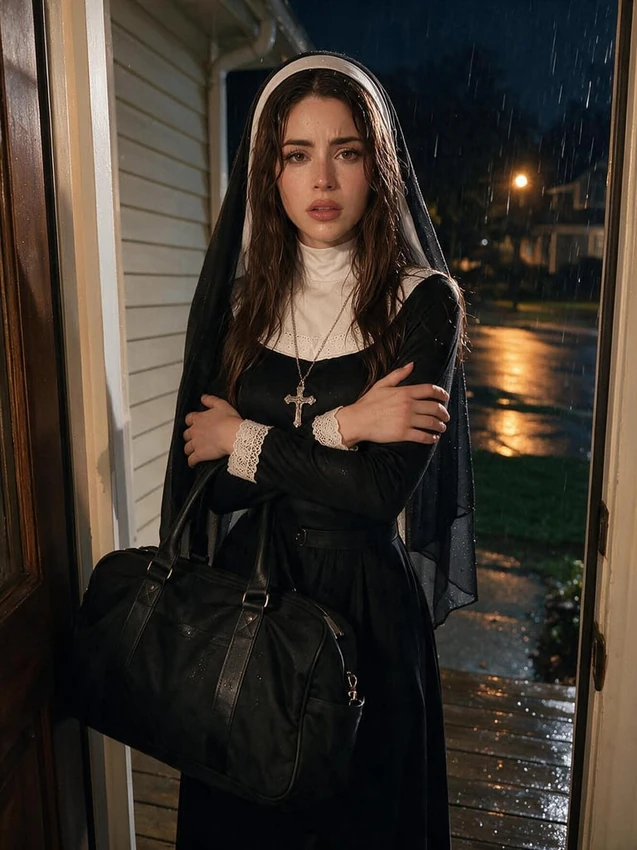
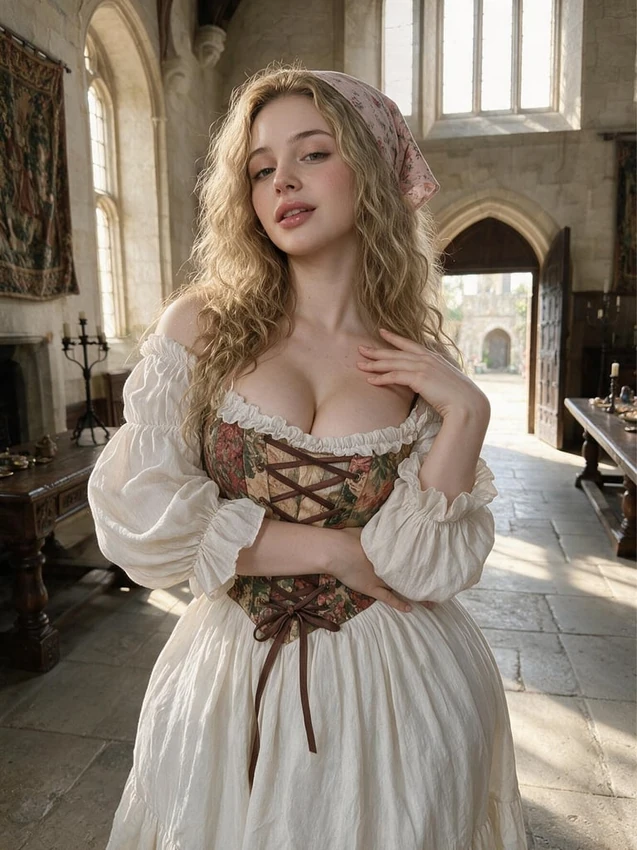
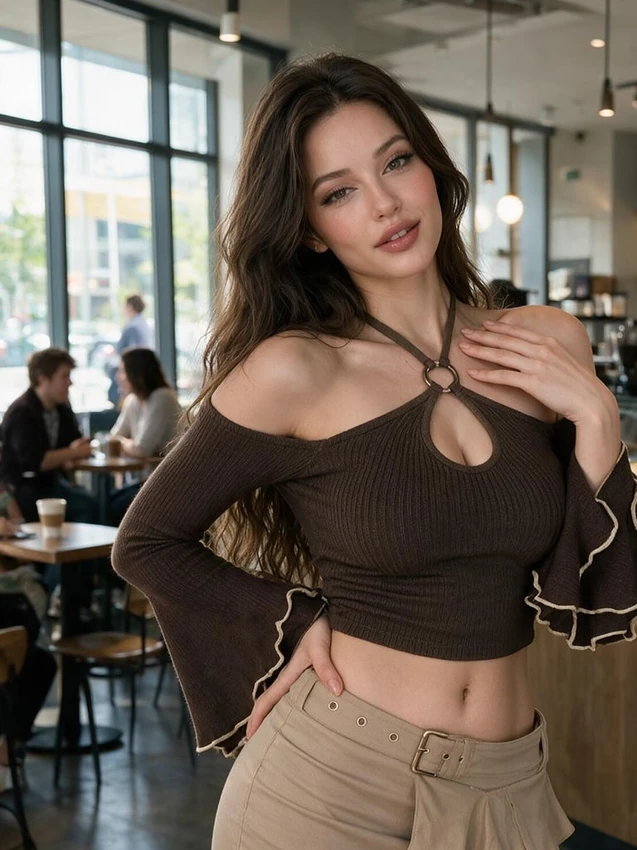
Start from a chat or the generator
In a conversation, the camera control offers image options. For the full set of controls, open Generate, choose Image and select Nectar Companion Model when you want a saved character to appear.
Confirm the companion selection and model version before generating. The chat model that writes replies is separate from the image model.
Write a prompt you can compare with the result
Keep the main action simple. If the pose works but the room is wrong, change the room before changing the outfit, camera angle and lighting as well.
Use plain sentences for V3. Customization tiles should agree with the written prompt. On models that offer Icks, use that field for unwanted elements; do not assume every model has it.
Review and organize the images
Find images through the chat's Gallery or the generator's history. Check the result before featuring it, using it as a profile picture or turning it into a video.
An image request can carry a credit charge. Read the displayed price for the selected model and settings before confirming it.